

When to use this
Prerequisites
- A Moxn account on a plan that includes imports
- A Microsoft account with at least one OneNote notebook — both personal Microsoft accounts (
@outlook.com,@hotmail.com,@live.com, Skype, Xbox) and work / school accounts (Microsoft Entra ID) are supported - Browser pop-ups allowed for
login.microsoftonline.comso the OAuth window can open
Moxn stores the OAuth refresh token encrypted and uses it to mint short-lived access tokens for each import. Disconnect removes the stored token. Moxn never sees your Microsoft password.
Import from OneNote
Step 1: Open the integration
In the Moxn web app, go to Settings > Integrations and click Import from OneNote.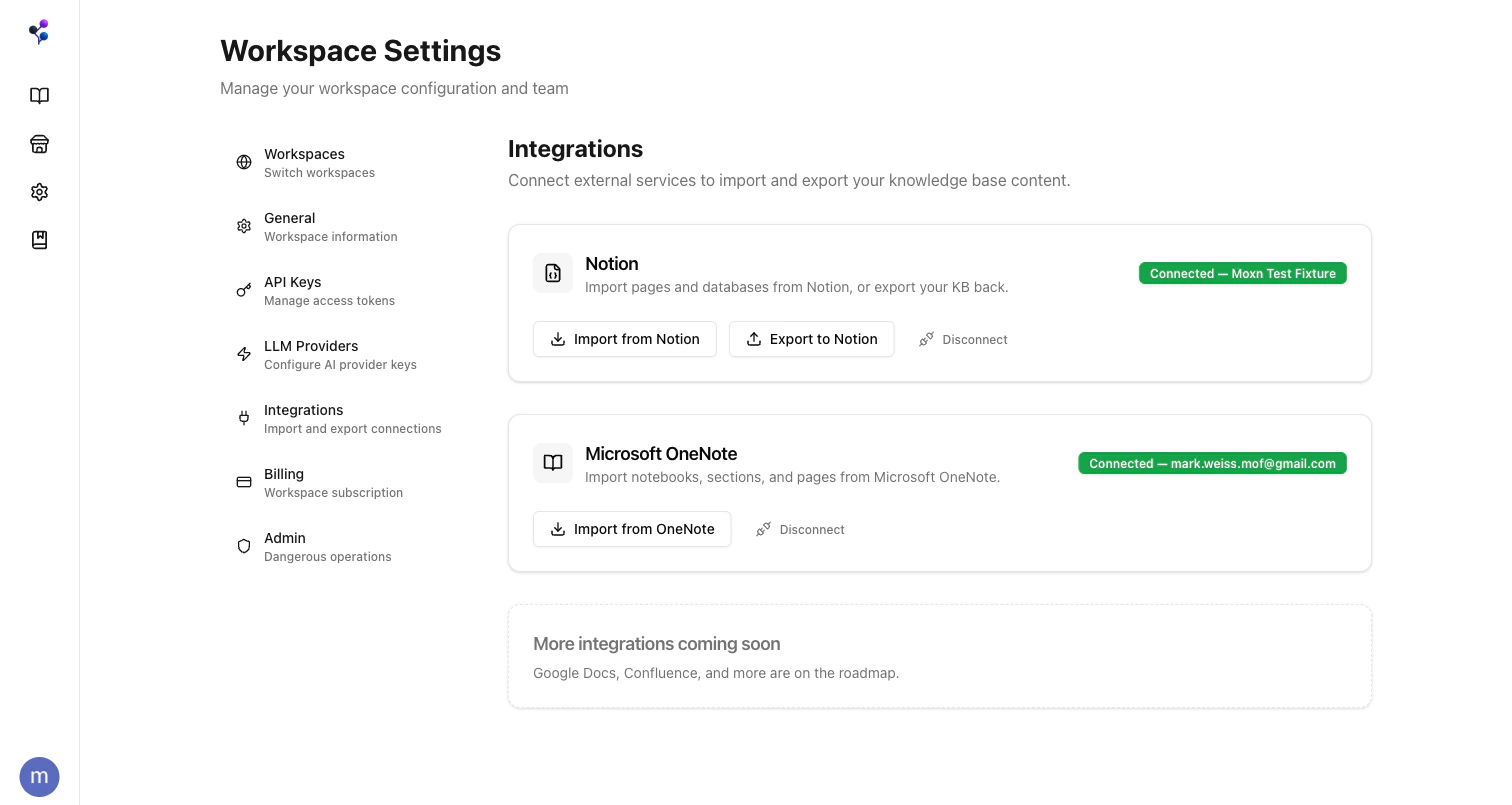
Step 2: Select notebooks, sections, or pages
The dialog shows your full OneNote hierarchy — every notebook, section group, section, and page the integration can see. You can:- Filter by name to narrow the tree
- Select a notebook to import everything inside it
- Drill in and select individual section groups, sections, or single pages
- Click the open-in-OneNote arrow next to any notebook to view it on onenote.com
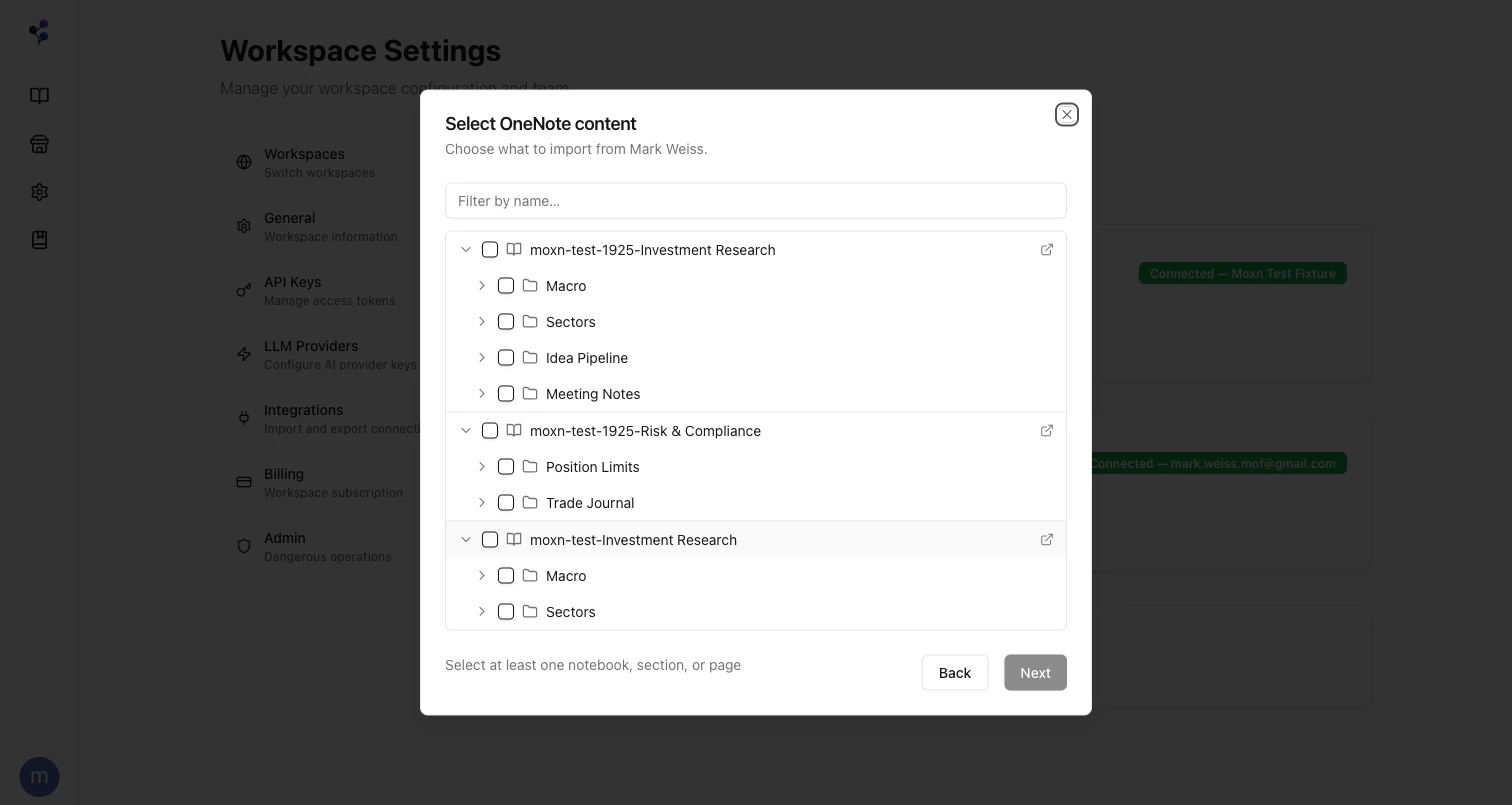
N items selected) updates as you check boxes. Click Next to continue.
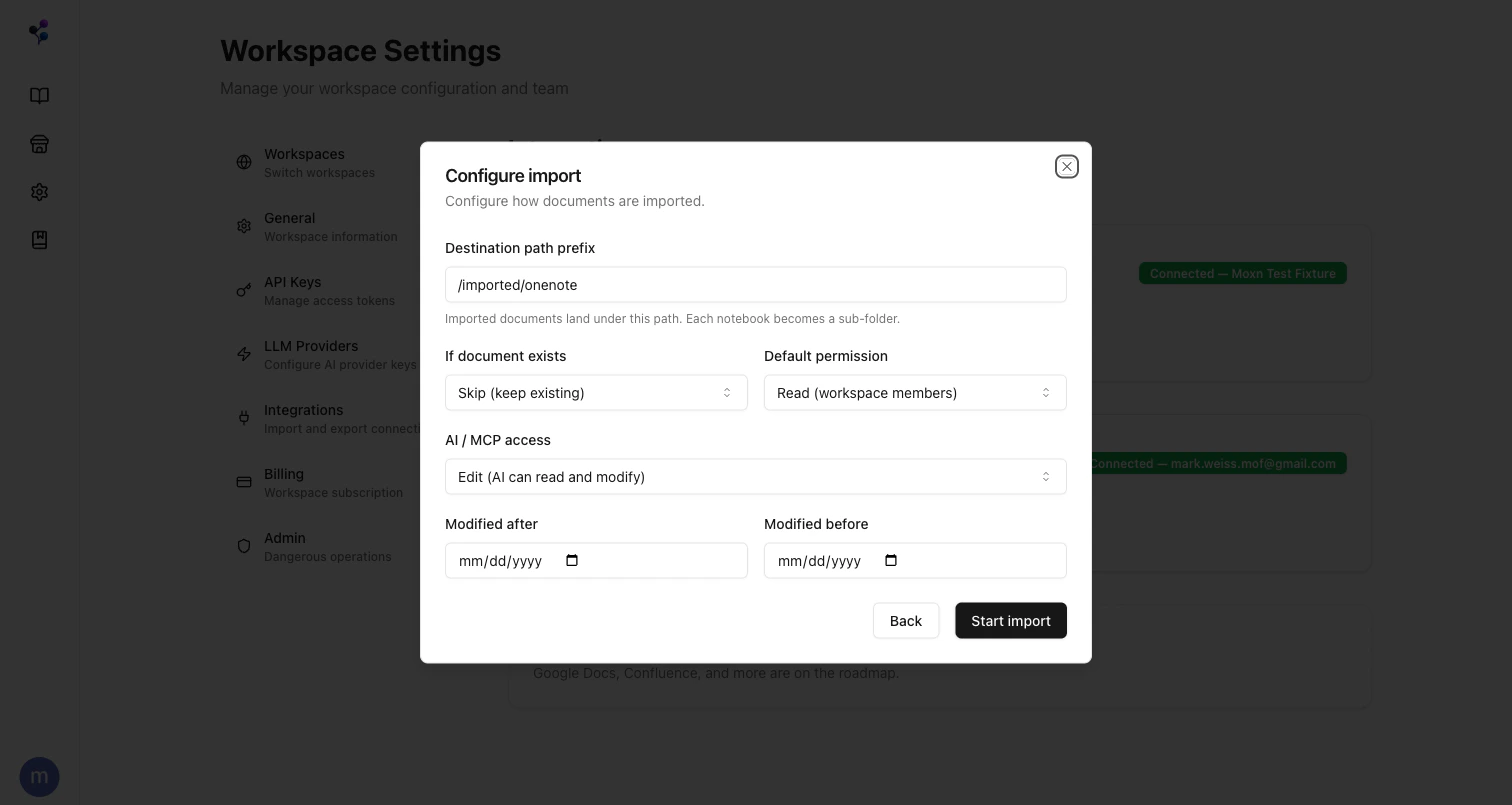
Step 3: Configure the import
See Permissions for how
default-permission and ai-access interact.
Step 4: Run and watch
Click Start import. Moxn creates a job record and hands it to a Trigger.dev background worker that: Per-page work fans out with a concurrency cap so the Microsoft Graph API isn’t overwhelmed. The dialog polls job status and shows the running stage, completed/failed/skipped counts, and per-page results. You can close the dialog and reopen it later — the job keeps running.Step 5: Open the imported docs
Each OneNote page becomes one Moxn document under your destination path. The page title becomes the document name; OneNote H2 headings become section breaks (so a long page becomes multiple sections you can navigate, edit, and permission independently).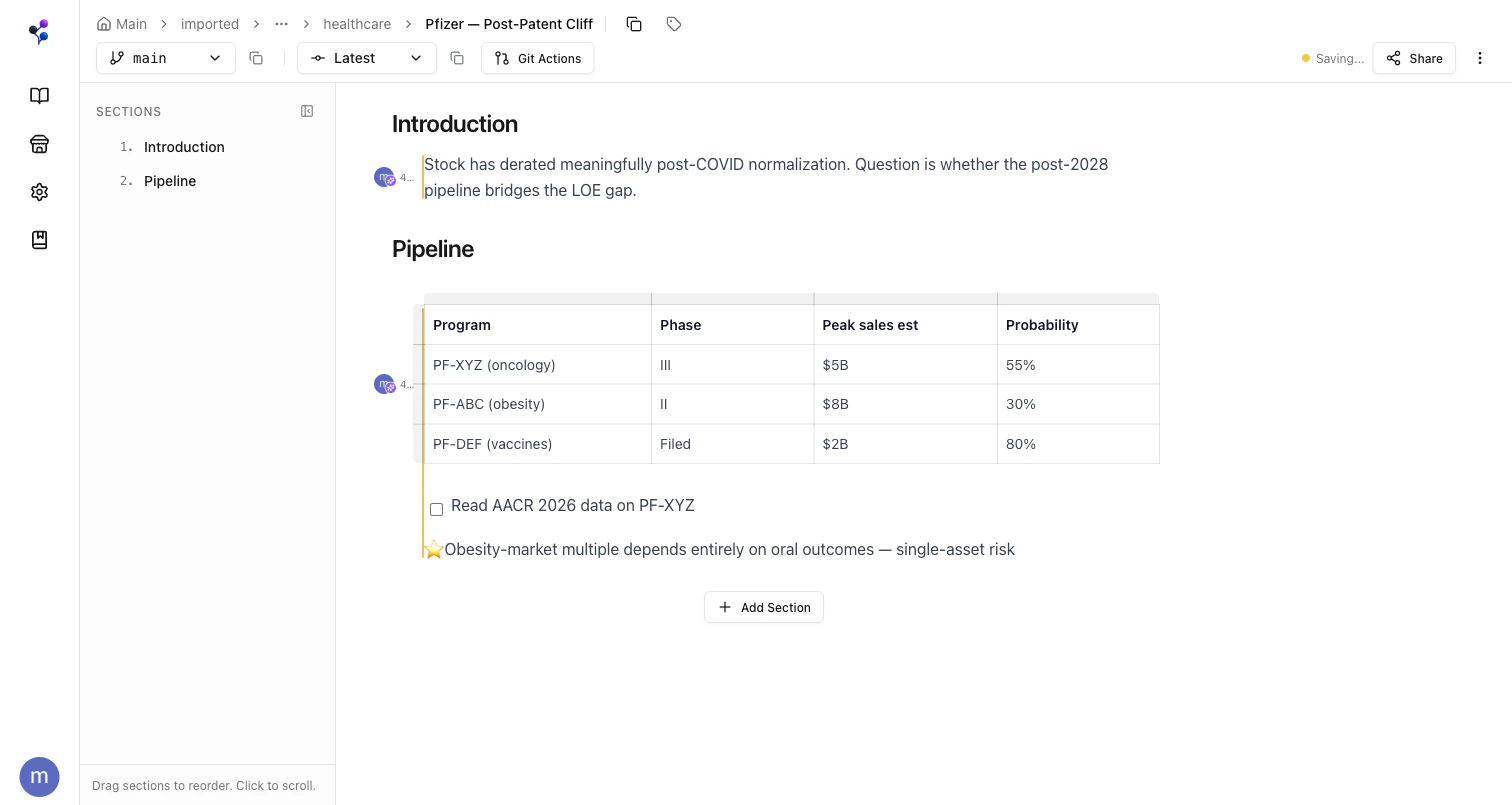
What gets converted
Anything OneNote returns as an inline image or attachment is downloaded once during import and uploaded to your workspace’s Moxn-managed storage — the Moxn document keeps a stable signed URL, so it won’t break if you later revoke OneNote access.
Disconnecting
Click Disconnect on the OneNote card to remove the stored OAuth refresh token. Future imports will require signing in again. Existing imported documents are not affected.Limits and behavior
Troubleshooting
Microsoft login pop-up blocked
Microsoft login pop-up blocked
Most browsers block pop-ups by default. When you click Continue with Microsoft, allow pop-ups for
login.microsoftonline.com and click again. The OAuth window opens, you sign in once, and the dialog returns to the Select step.Tree shows fewer notebooks than I expect
Tree shows fewer notebooks than I expect
Moxn requests the
Notes.Read Microsoft Graph scope, which gives access to OneNote notebooks owned by or shared with the signed-in account. Notebooks shared via a SharePoint group you don’t directly belong to may not appear. Check what the same account can see at onenote.com — the Moxn tree mirrors that view.A page failed to import
A page failed to import
Per-page failures appear in the Complete step with the underlying error. Common causes:
- Attachment too large — files > 50 MB are skipped, and if a page is mostly an oversized attachment it may be marked failed
- Microsoft Graph 5xx — transient — re-run the import with Conflict strategy: skip to retry only the failures
- Unsupported HTML — very rare; the page imports as text-only with the offending block dropped (logged as a warning)
Re-importing didn't update an existing page
Re-importing didn't update an existing page
Make sure you set If document exists to Update (overwrite sections) in the Configure step. The default is
skip, which leaves existing documents untouched.Update replaces the document’s sections from the OneNote source on the default branch. If you have feature branches with manual edits, those are unaffected — update writes to the default branch only.Images show as broken or 1×1
Images show as broken or 1×1
Imported images are re-hosted to Moxn storage and served via signed URLs that auto-refresh. If you see a broken image or a 1×1 pixel where a chart should be:
- Refresh the page — the editor will mint a new signed URL
- If the image is genuinely 1×1 in OneNote (placeholder, OCR-failed thumbnail), the import faithfully re-hosts it that way — fix it in OneNote and re-import with
update
`Connected — Checking…` never resolves
`Connected — Checking…` never resolves
The integrations page calls Microsoft Graph to verify the stored token is still valid. If the token is revoked or expired and the refresh token is invalid (e.g. you changed your Microsoft password), the badge shows Not connected after a few seconds. Click Disconnect, then Import from OneNote to re-authorize.
Imports disabled on free plan
Imports disabled on free plan
The in-app integration requires a paid plan. There is no CLI alternative for OneNote at this time.
Next Steps
Concepts: Documents & Sections
How H2 splits become sections you can permission and merge independently
Notion Integration
Bring a Notion workspace into Moxn the same way
Filesystems
Organize imports into multiple isolated content roots
Connect AI Assistants
Set up MCP so agents can use your imported notebooks