

Documents
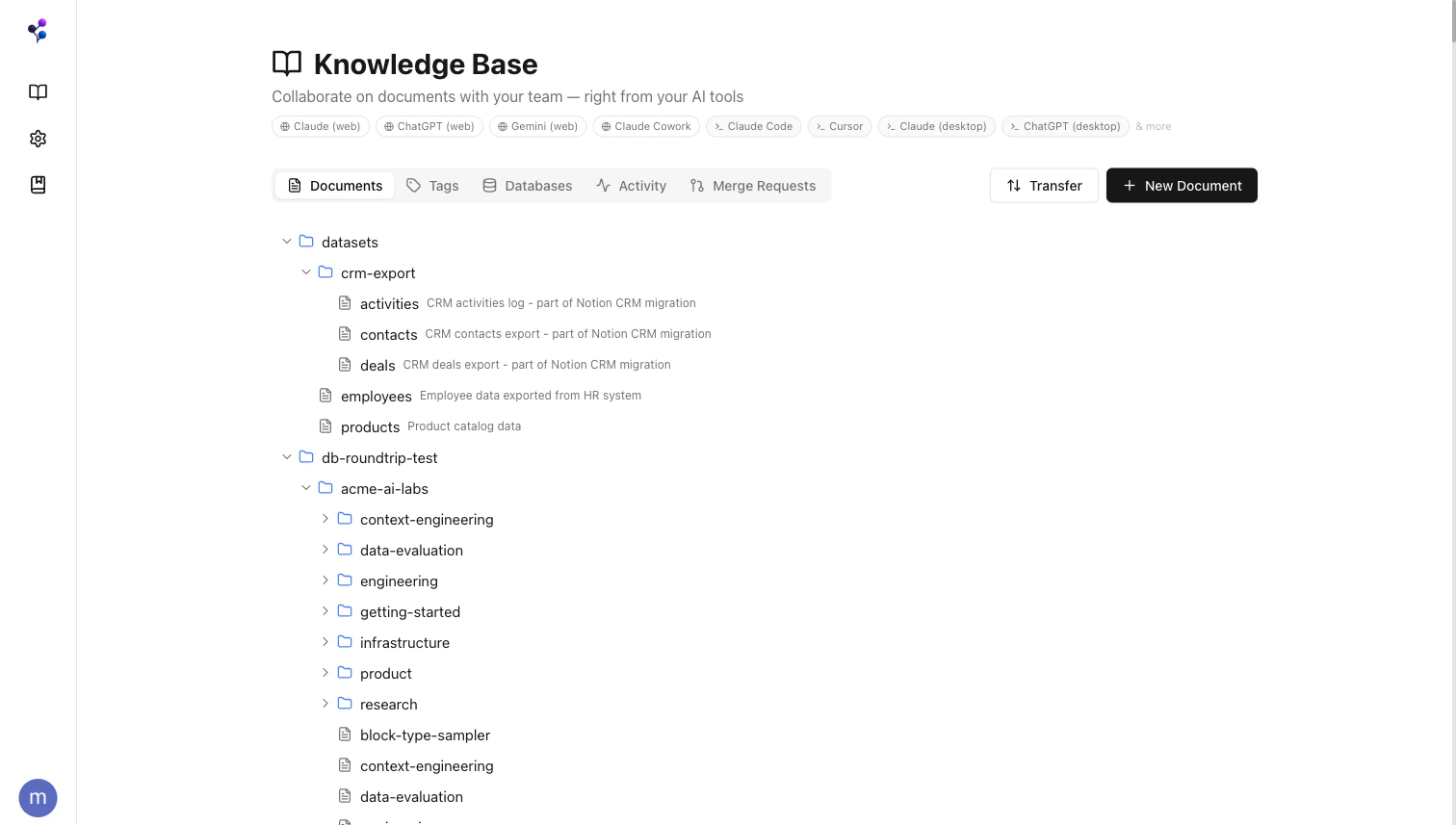
A document is the primary content container in Moxn — like a file in a repository. Every document has:- Path — a slash-delimited identifier like
/engineering/api-guide. The path determines the document’s location in the folder hierarchy. Path segments implicitly create folders. - Name — a human-readable display name (defaults to the last path segment if not set)
- Description — optional metadata shown in listings
- Branch history — every document has its own independent branch history
Creating Documents
In the web app:- Navigate to Documents in the sidebar
- Click New Document
- Enter a path (e.g.,
/engineering/api-guide) - Add sections and content
- Click Commit to save
documents tool with action: "create".
Sections
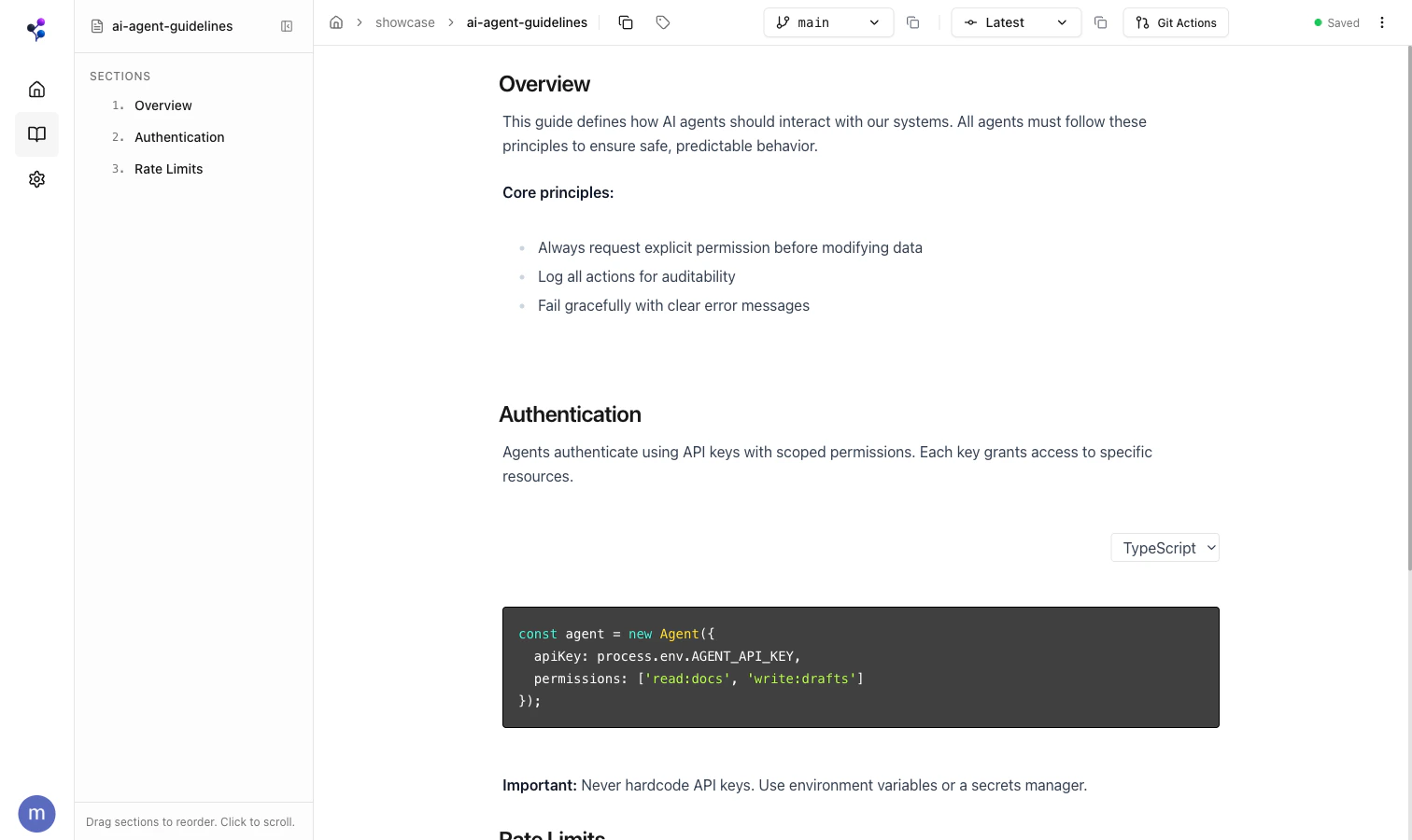
Sections are the core structural unit for both humans and agents. A document is a collection of sections that manage their own content, references, and optionally permission overrides. Humans comment, reorder, and permission sections in the editor; agents read and write at section granularity via MCP — no doc-level replacements needed. Each section has:- Name — rendered automatically as an H2 heading in the UI
- Content — rich content below the heading: text, code, tables, diagrams, images, PDFs, CSVs, and database embeds
Content Types
When writing content via MCP, use content blocks — not markdown image syntax.
 is not supported in section content.Section Ordering
Sections are ordered by position. Drag to reorder in the web UI, or use thesections tool with action: "reorder".
Inline Comments
Team members can leave inline comments on specific text within a section — similar to Google Docs suggestions. Comments appear in the section content as XML tags:<moxn:comment id="uuid">highlighted text</moxn:comment>.
When editing a section that contains comments, preserve the comment tags around the original text.
References
Documents and sections can link to each other — wiki-style bidirectional links. Link inline in the prose with a<moxn:ref> tag, or attach a link without touching the body using the documents tool with action: "add_reference". See Backlinks.
The Folder Hierarchy
Moxn derives folders from document paths. There are no explicit folder objects to create — just create a document at/engineering/backend/auth-guide and the folders /engineering and /engineering/backend exist automatically.
Use find with type: "folder" to list the virtual folder structure.
Auto-Save and Commits
Changes in the web editor auto-save to a working state but are not committed. The Commit button creates an immutable snapshot with a commit message. Uncommitted changes are shown with a yellow indicator. In MCP, everysections write operation automatically commits the change.
Media Files
Images, PDFs, and other files are stored in Moxn’s blob storage (Supabase) — not embedded as base64 in the document. When reading sections with media via MCP, you receive time-limited signed URLs (valid 1 hour) to download or display the content. When uploading files via the stdio MCP proxy, you can pass a local file path — the proxy handles the upload automatically:upload_url for manual upload workflows.