> ## Documentation Index
> Fetch the complete documentation index at: https://moxn.mintlify.site/llms.txt
> Use this file to discover all available pages before exploring further.
# Tags
> Hierarchical labels for cross-cutting document organization
Tags are hierarchical labels you can assign to documents across your Knowledge Base. Unlike folders (which give a document one location), a document can have many tags — making tags the right tool for cross-cutting categorization.
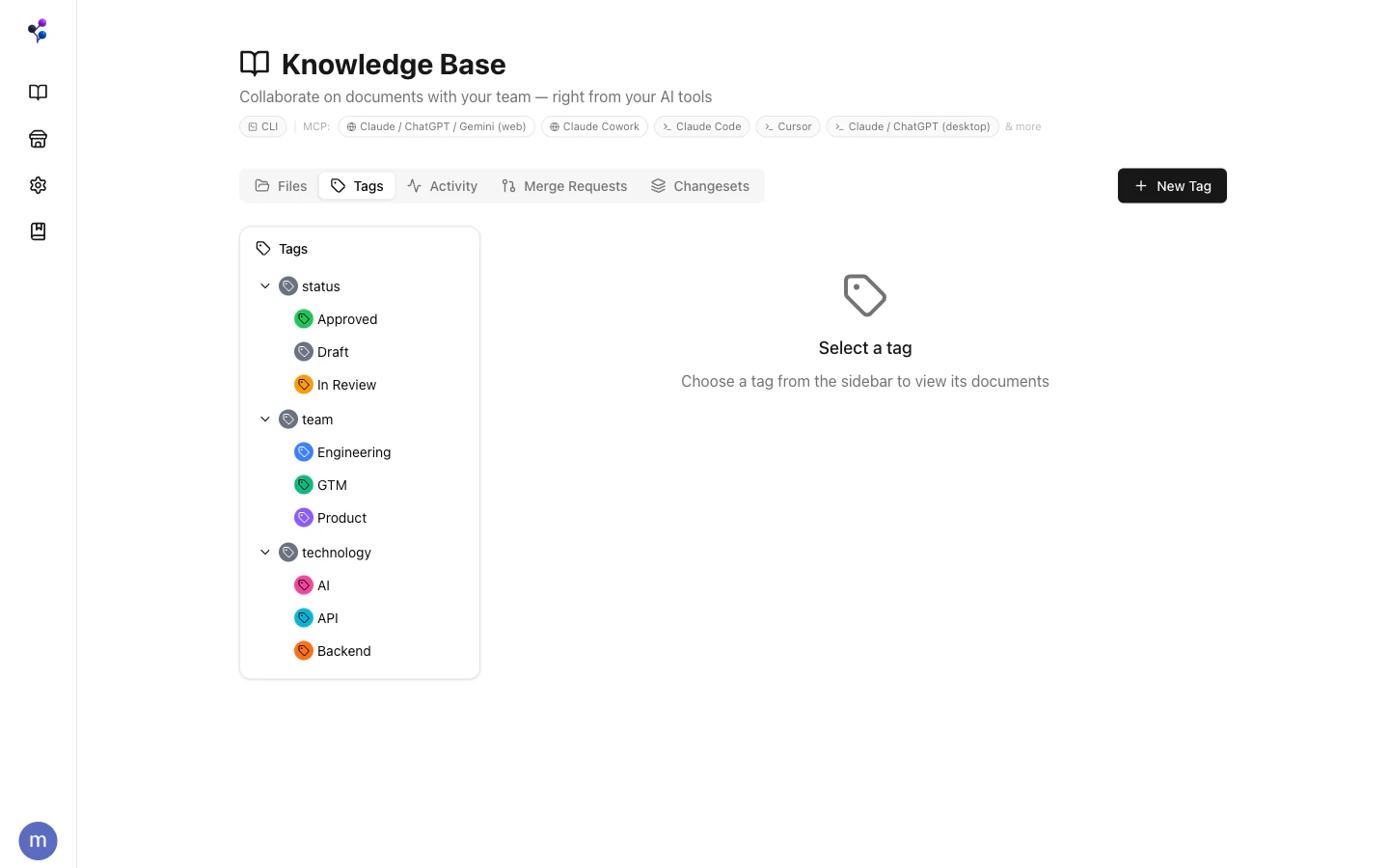 ## What Tags Look Like
Tags have **paths** — slash-separated strings that express hierarchy:
```
/status/in-review
/team/engineering
/technology/ai
```
The path determines where a tag sits in the tree. Creating `/technology/ai/google` automatically creates `/technology` and `/technology/ai` as ancestors if they don't exist yet.
Tags can also have a **display name** (e.g., "In Review"), a **color**, and an optional description. The display name is what's shown in the UI; the path is what's used in API calls.
## Browsing Tags and Their Documents
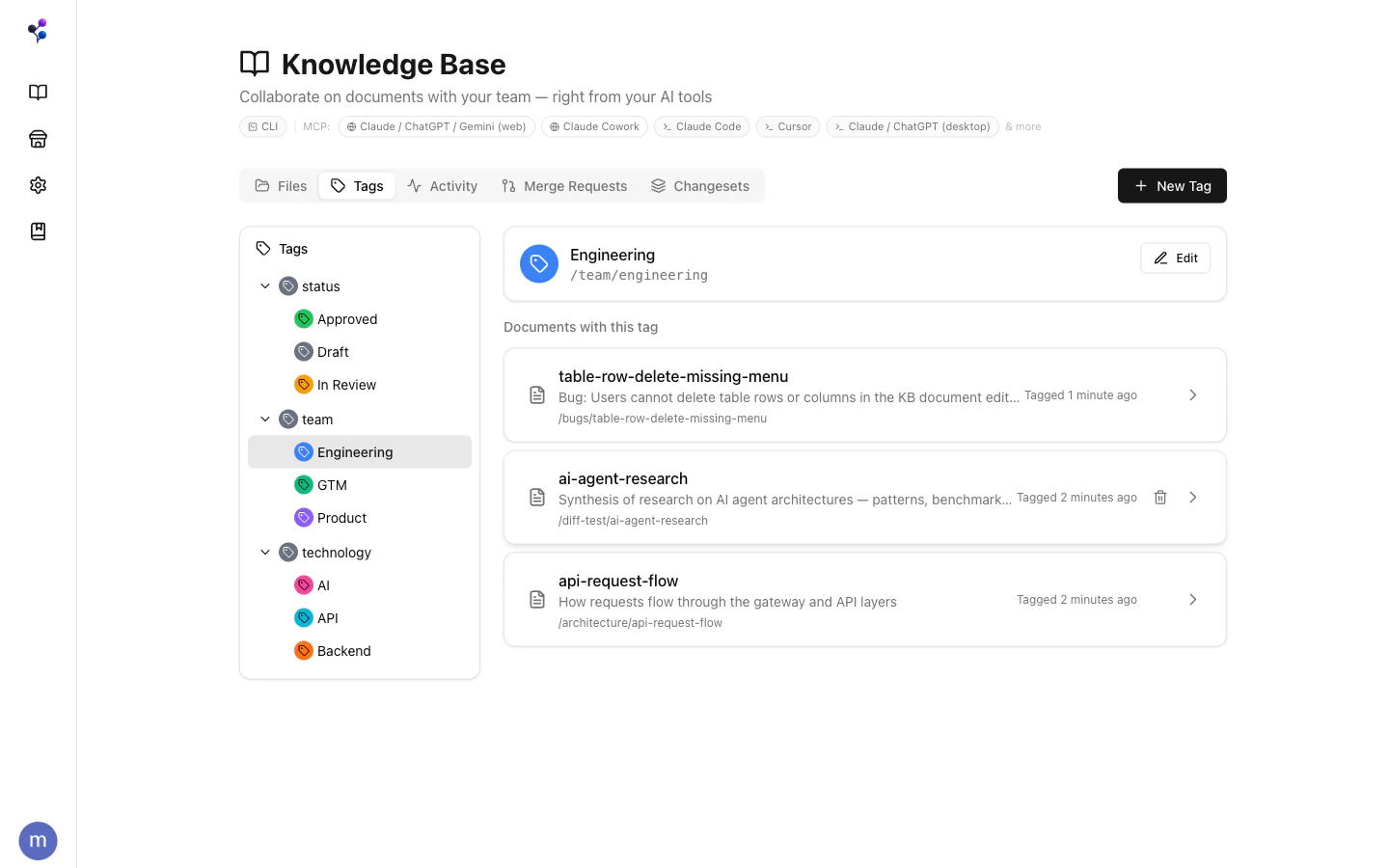
The **Tags tab** in the Knowledge Base shows the full tag hierarchy. Click any tag to see which documents have been assigned to it.
## What Tags Look Like
Tags have **paths** — slash-separated strings that express hierarchy:
```
/status/in-review
/team/engineering
/technology/ai
```
The path determines where a tag sits in the tree. Creating `/technology/ai/google` automatically creates `/technology` and `/technology/ai` as ancestors if they don't exist yet.
Tags can also have a **display name** (e.g., "In Review"), a **color**, and an optional description. The display name is what's shown in the UI; the path is what's used in API calls.
## Browsing Tags and Their Documents
The **Tags tab** in the Knowledge Base shows the full tag hierarchy. Click any tag to see which documents have been assigned to it.
 ## Assigning Tags to Documents
In the web app, open a document and click the **Tags** button in the toolbar to assign or remove tags.
Via MCP, use the [`documents` tool](/reference/mcp/documents) with `action: "assign_tag"` or `action: "remove_tag"`.
## Filtering by Tag
Tags integrate with [`find`](/reference/mcp/find) and the web file browser. Pass one or more `tagIds` to filter documents:
```
find({tagIds: [""]})
```
With `tagFilterMode: "all"`, every specified tag must be present. The default `"any"` mode returns documents that match at least one.
## Tags vs. Folders
| | Folders | Tags |
| ------------------------- | ----------------------------- | ---------------------------- |
| **How many per document** | One (the path) | Many |
| **Structure** | Strict hierarchy | Flexible hierarchy |
| **Best for** | Primary location / navigation | Cross-cutting categorization |
A document at `/engineering/api-guide` lives in one folder. It can simultaneously carry `/team/backend`, `/status/approved`, and `/technology/api` tags. Folders answer "where is this?"; tags answer "what is this?".
## Managing the Tag Catalog
Tag definitions (path, color, display name, description) are managed with the [`tags` MCP tool](/reference/mcp/tags) or through **New Tag** in the Tags panel.
Deleting a tag **cascades** — it removes all descendants and clears all document assignments.
Tags are global to a filesystem — they're shared across all documents in that filesystem, not scoped per document or branch.
## Database Columns Backed by Tags
Tags are also the engine behind database column options. When you create a `select`, `multi_select`, `status`, or `checkbox` column in a database, the options are tags. Setting a property on a document assigns the corresponding tag.
See [Databases](/concepts/databases) for how this works.
## Assigning Tags to Documents
In the web app, open a document and click the **Tags** button in the toolbar to assign or remove tags.
Via MCP, use the [`documents` tool](/reference/mcp/documents) with `action: "assign_tag"` or `action: "remove_tag"`.
## Filtering by Tag
Tags integrate with [`find`](/reference/mcp/find) and the web file browser. Pass one or more `tagIds` to filter documents:
```
find({tagIds: [""]})
```
With `tagFilterMode: "all"`, every specified tag must be present. The default `"any"` mode returns documents that match at least one.
## Tags vs. Folders
| | Folders | Tags |
| ------------------------- | ----------------------------- | ---------------------------- |
| **How many per document** | One (the path) | Many |
| **Structure** | Strict hierarchy | Flexible hierarchy |
| **Best for** | Primary location / navigation | Cross-cutting categorization |
A document at `/engineering/api-guide` lives in one folder. It can simultaneously carry `/team/backend`, `/status/approved`, and `/technology/api` tags. Folders answer "where is this?"; tags answer "what is this?".
## Managing the Tag Catalog
Tag definitions (path, color, display name, description) are managed with the [`tags` MCP tool](/reference/mcp/tags) or through **New Tag** in the Tags panel.
Deleting a tag **cascades** — it removes all descendants and clears all document assignments.
Tags are global to a filesystem — they're shared across all documents in that filesystem, not scoped per document or branch.
## Database Columns Backed by Tags
Tags are also the engine behind database column options. When you create a `select`, `multi_select`, `status`, or `checkbox` column in a database, the options are tags. Setting a property on a document assigns the corresponding tag.
See [Databases](/concepts/databases) for how this works.