> ## Documentation Index
> Fetch the complete documentation index at: https://moxn.mintlify.site/llms.txt
> Use this file to discover all available pages before exploring further.
# Documents & Sections
> The core content model — how documents and sections work in Moxn
## Documents
A **document** is the primary content container in Moxn — like a file in a repository. Every document has:
* **Path** — a slash-delimited identifier like `/engineering/api-guide`. The path determines the document's location in the folder hierarchy. Path segments implicitly create folders.
* **Name** — a human-readable display name (defaults to the last path segment if not set)
* **Description** — optional metadata shown in listings
* **Branch history** — every document has its own independent branch history
Paths are unique within your workspace's filesystem. If your workspace uses multiple [filesystems](/concepts/filesystems), the same path can exist in each — they're independent namespaces.
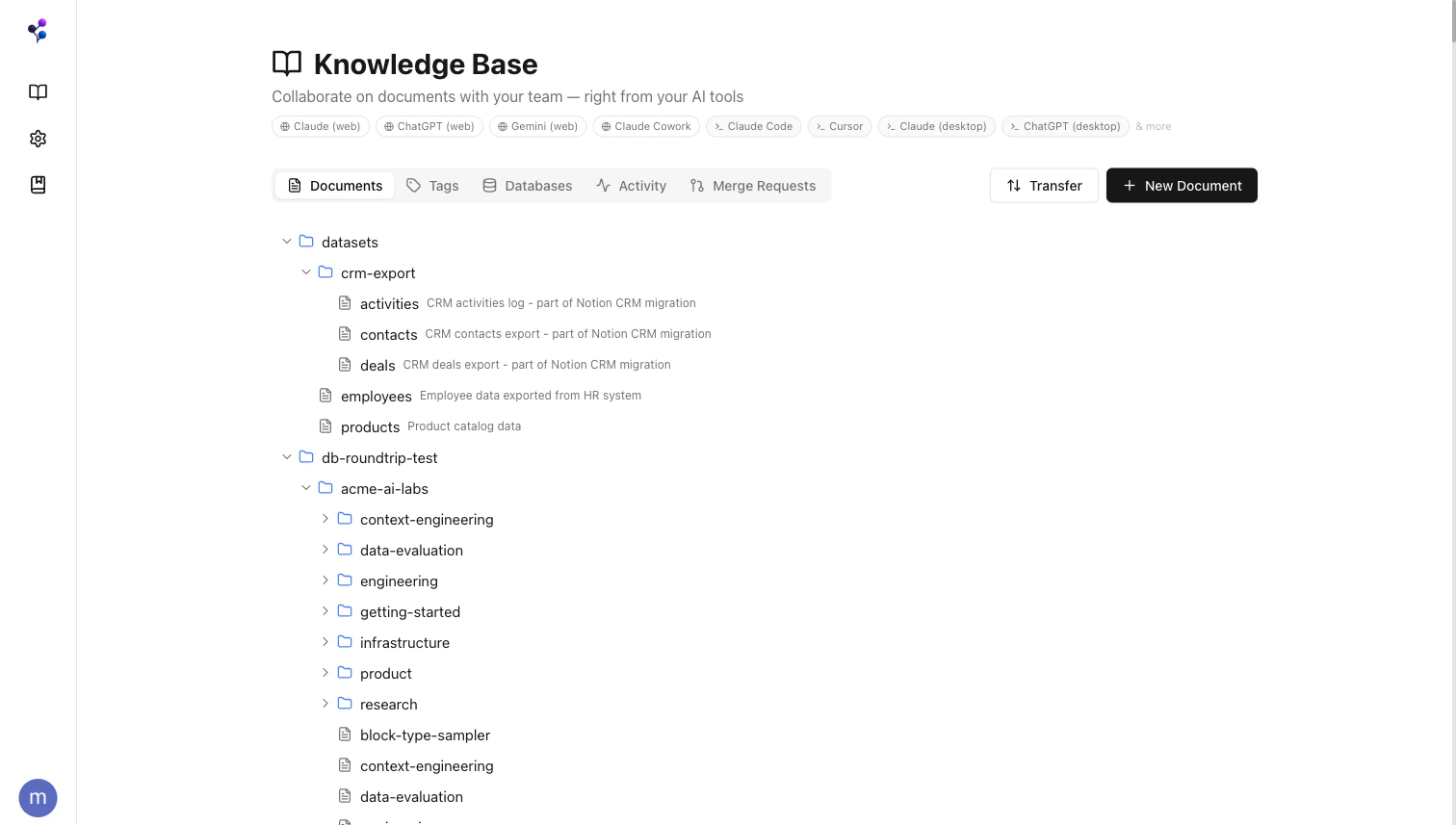 ### Creating Documents
In the web app:
1. Navigate to **Documents** in the sidebar
2. Click **New Document**
3. Enter a path (e.g., `/engineering/api-guide`)
4. Add sections and content
5. Click **Commit** to save
Via MCP, use the [`documents` tool](/reference/mcp/documents) with `action: "create"`.
## Sections
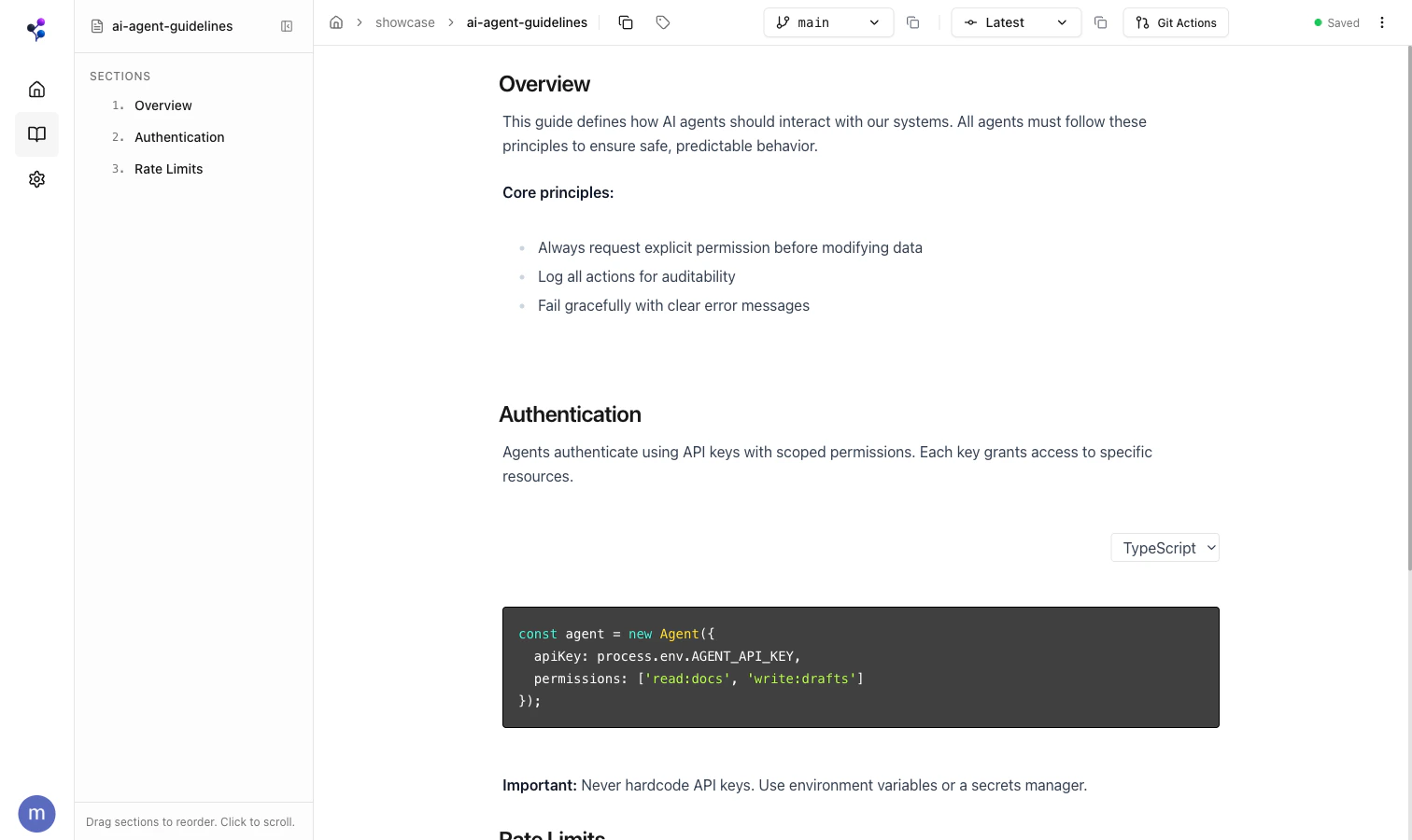
Sections are the core structural unit for both humans and agents. A document is a collection of sections that manage their own content, references, and optionally permission overrides. Humans comment, reorder, and permission sections in the editor; agents read and write at section granularity via MCP — no doc-level replacements needed.
Each section has:
* **Name** — rendered automatically as an H2 heading in the UI
* **Content** — rich content below the heading: text, code, tables, diagrams, images, PDFs, CSVs, and database embeds
### Creating Documents
In the web app:
1. Navigate to **Documents** in the sidebar
2. Click **New Document**
3. Enter a path (e.g., `/engineering/api-guide`)
4. Add sections and content
5. Click **Commit** to save
Via MCP, use the [`documents` tool](/reference/mcp/documents) with `action: "create"`.
## Sections
Sections are the core structural unit for both humans and agents. A document is a collection of sections that manage their own content, references, and optionally permission overrides. Humans comment, reorder, and permission sections in the editor; agents read and write at section granularity via MCP — no doc-level replacements needed.
Each section has:
* **Name** — rendered automatically as an H2 heading in the UI
* **Content** — rich content below the heading: text, code, tables, diagrams, images, PDFs, CSVs, and database embeds
 ### Content Types
| Block type | Description |
| -------------- | -------------------------------------------------------------- |
| Text | Rich markdown: bold, italic, lists, tables, inline code, links |
| Code | Syntax-highlighted code block (20+ languages) |
| Mermaid | Inline diagram — flowcharts, sequence diagrams, ERDs |
| Image | Stored image (PNG, JPG, GIF, WebP) |
| PDF | Embedded PDF viewer |
| CSV | Tabular data with headers |
| File | Attached file (docx, zip, etc.) |
| Database embed | Live view of a KB database |
When writing content via MCP, use content blocks — not markdown image syntax. `` is not supported in section content.
### Section Ordering
Sections are ordered by position. Drag to reorder in the web UI, or use the [`sections` tool](/reference/mcp/sections) with `action: "reorder"`.
### Inline Comments
Team members can leave **inline comments** on specific text within a section — similar to Google Docs suggestions. Comments appear in the section content as XML tags: `highlighted text`.
When editing a section that contains comments, preserve the comment tags around the original text.
### References
Sections can reference other documents or sections — wiki-style bidirectional links. Use the [`sections` tool](/reference/mcp/sections) with `action: "add_reference"`.
## The Folder Hierarchy
Moxn derives folders from document paths. There are no explicit folder objects to create — just create a document at `/engineering/backend/auth-guide` and the folders `/engineering` and `/engineering/backend` exist automatically.
Use [`find`](/reference/mcp/find) with `type: "folder"` to list the virtual folder structure.
## Auto-Save and Commits
Changes in the web editor **auto-save** to a working state but are not committed. The **Commit** button creates an immutable snapshot with a commit message. Uncommitted changes are shown with a yellow indicator.
In MCP, every `sections` write operation automatically commits the change.
## Media Files
Images, PDFs, and other files are stored in Moxn's blob storage (Supabase) — not embedded as base64 in the document. When reading sections with media via MCP, you receive time-limited signed URLs (valid 1 hour) to download or display the content.
When uploading files via the stdio MCP proxy, you can pass a local file path — the proxy handles the upload automatically:
```json theme={null}
{"blockType": "image", "type": "file", "path": "/absolute/path/to/image.png"}
```
See [`upload_url`](/reference/mcp/upload-url) for manual upload workflows.
### Content Types
| Block type | Description |
| -------------- | -------------------------------------------------------------- |
| Text | Rich markdown: bold, italic, lists, tables, inline code, links |
| Code | Syntax-highlighted code block (20+ languages) |
| Mermaid | Inline diagram — flowcharts, sequence diagrams, ERDs |
| Image | Stored image (PNG, JPG, GIF, WebP) |
| PDF | Embedded PDF viewer |
| CSV | Tabular data with headers |
| File | Attached file (docx, zip, etc.) |
| Database embed | Live view of a KB database |
When writing content via MCP, use content blocks — not markdown image syntax. `` is not supported in section content.
### Section Ordering
Sections are ordered by position. Drag to reorder in the web UI, or use the [`sections` tool](/reference/mcp/sections) with `action: "reorder"`.
### Inline Comments
Team members can leave **inline comments** on specific text within a section — similar to Google Docs suggestions. Comments appear in the section content as XML tags: `highlighted text`.
When editing a section that contains comments, preserve the comment tags around the original text.
### References
Sections can reference other documents or sections — wiki-style bidirectional links. Use the [`sections` tool](/reference/mcp/sections) with `action: "add_reference"`.
## The Folder Hierarchy
Moxn derives folders from document paths. There are no explicit folder objects to create — just create a document at `/engineering/backend/auth-guide` and the folders `/engineering` and `/engineering/backend` exist automatically.
Use [`find`](/reference/mcp/find) with `type: "folder"` to list the virtual folder structure.
## Auto-Save and Commits
Changes in the web editor **auto-save** to a working state but are not committed. The **Commit** button creates an immutable snapshot with a commit message. Uncommitted changes are shown with a yellow indicator.
In MCP, every `sections` write operation automatically commits the change.
## Media Files
Images, PDFs, and other files are stored in Moxn's blob storage (Supabase) — not embedded as base64 in the document. When reading sections with media via MCP, you receive time-limited signed URLs (valid 1 hour) to download or display the content.
When uploading files via the stdio MCP proxy, you can pass a local file path — the proxy handles the upload automatically:
```json theme={null}
{"blockType": "image", "type": "file", "path": "/absolute/path/to/image.png"}
```
See [`upload_url`](/reference/mcp/upload-url) for manual upload workflows.